Metres that stay on a PM3 or PM4 fail to reach a Concept2 challenge until they are in that person’s Online Logbook. Concept2’s ErgData support page, read on October 11, 2026, says the latest ErgData release connects by Bluetooth only and is not available for a PM3 or PM4.
That limit is for the current app. A January 6, 2017 overview still described an adapter path for those older monitors. This page compares the logging choices those public pages actually describe, so a captain can pick a LogCard upload or a typed Log page entry. It does not install an app or walk through a PM5 memory upload.
Can ErgData log a PM3 or PM4 workout now? No. The ErgData support page says the app connects to Concept2 equipment with a PM5, and that the latest release is Bluetooth only, so it is not available for a PM3 or PM4. The Google Play listing, updated October 9, 2026, says the app is compatible with the PM5 and connects to a PM5 via Bluetooth only. For a PM3 or PM4, the Utility how-to (read the same day) names a LogCard, read by that monitor or by a card reader, as the file you upload, and the Logbook FAQ names a manual entry on the Log page as the other way to put metres in.
Quick specs
| Item | What the opened page says | Why it changes the choice |
|---|---|---|
| Current ErgData | Free app. Connects to Concept2 equipment with a PM5. Latest release is Bluetooth only, so it is not available for a PM3 or PM4. | A newer phone does not add this connection |
| Phone versions for ErgData | iPhones need iOS 13.0 or later. Android phones need Android 10.0 or later. | Those lines are about ErgData, which the same page limits to a PM5 |
| Google Play listing | Compatible with the PM5, and with the Concept2 RowErg, SkiErg, and BikeErg. Connects to the PM5 via Bluetooth only. Updated October 9, 2026. | Same Bluetooth limit, from the publisher listing |
| January 6, 2017 overview | Says ErgData works with a PM3, PM4, and PM5, with Bluetooth on a PM5 and a special adapter for a PM3 or PM4. The post says the author had not tested every app, and that updates can leave the description inaccurate. | Keep it as an old claim, not as install steps |
| LogCard upload | Concept2 Utility reads a LogCard in a PM3 or PM4, or in a card reader. One card can hold up to five users. | This is the file path those pages give for a PM3 or PM4 |
| Typed Log page entry | The Logbook FAQ lists manual entry on the Log page, alongside app sync and a Utility upload. | Use it when there is no card to upload |
| BoatCoach | The ErgData FAQ names it as an Android-only app that supports cabled connections if you row or ski on an older monitor. | The FAQ stops there. No price, phone list, or steps were on that page |
Does current ErgData connect to a PM3 or PM4?
No. The support page says the latest release only supports Bluetooth, which means it is not available for the PM3 or PM4. The same page says ErgData connects to all Concept2 equipment with a PM5. The Play listing repeats the PM5 and Bluetooth-only lines, and it also lists the Concept2 RowErg, SkiErg, and BikeErg. The Bluetooth sentence names the PM5.
On a PM5, the support page says ErgData syncs both ways with the Logbook. The first sync fetches the 50 most recent workouts, then syncs fully after that. A piece from ErgData is already treated as verified, in the same way as a piece uploaded from the Concept2 Utility, so the support page says you do not need a verification code for it. Those sentences describe the PM5 app. They are not a PM3 or PM4 connection.
The support page also says iPhones need iOS 13.0 or later and Android phones need Android 10.0 or later. That is the phone requirement for ErgData. It sits next to the Bluetooth-only limit, so it does not put the app on a PM3 or PM4.
If you row or ski on an older monitor, the same FAQ names BoatCoach as an Android-only app that supports cabled connections. The sentence does not mention the BikeErg, a price, a phone model, or a setup sequence. The 2017 overview describes BoatCoach in more detail, including a paid export. That detail is not used here, because the post itself says app updates can leave it inaccurate, and this page did not open a current BoatCoach listing.
Takeaway: For a PM3 or PM4, leave ErgData. Choose a LogCard upload or a typed Log page entry from the table below.
What did the January 2017 overview claim?
The post dated January 6, 2017 says ErgData, a free Concept2 app for iOS and Android, is compatible with a PM3, PM4, and PM5. It says a PM5 can connect by Bluetooth, and a PM3 or PM4 needs a special adapter to the phone. It also says the app synchronizes directly to the Concept2 online logbook.
The same post says the author had not tested every app or bought premium versions, and that frequent updates can leave the information inaccurate. Read against the October 11, 2026 support page, that adapter sentence is the outdated claim. The current page does not describe a special adapter as a way to connect ErgData to a PM3 or PM4.
This comparison does not rank apps, and it does not say an old adapter is still for sale.
Which path fits the monitor and the card?
Use one row. Empty cells are items the opened pages did not name. A blank monitor-menu cell means those pages did not give a button name. Do not fill it from a PM5 screen.
| Path | Monitor the source names | How metres reach the Logbook | Verification the source states | Monitor menu item |
|---|---|---|---|---|
| Current ErgData | PM5 only. Bluetooth only. Not available for a PM3 or PM4. | Two-way Logbook sync. First sync fetches the 50 most recent workouts. | Treated as verified, similar to a Utility upload. No verification code. | |
| January 6, 2017 ErgData description | The post names a PM3, PM4, and PM5, plus a special adapter for a PM3 or PM4. | The post says the app syncs to the Concept2 online logbook. | ||
| LogCard through Concept2 Utility | A PM3 or PM4 LogCard, read in that monitor or in a card reader. Up to five users on one card. | Upload/Transfer Results, then Upload to Online Logbook. Needs an internet connection and an online logbook. | A direct Utility upload from a LogCard is classed as verified. | |
| Typed entry on the Log page | The FAQ does not limit manual entry to one monitor. | Enter the result on the Log page. | Not given the automatic class. A verification code from a PM3, PM4, or PM5 can flag the piece. | |
| BoatCoach, as named on the ErgData page | Android-only, cabled, if you row or ski on an older monitor. |
The Utility how-to also lists two other upload sources: a USB flash drive, and a PM5 with results in memory. Those are not the PM3 or PM4 LogCard path, and this page does not repeat the PM5 memory steps. The how-to says PM5 memory does not store a username or Ranking ID, so that link has to be made on every PM5 memory upload. That sentence is about PM5 memory only.
Check the machine before you pick a row:
| Check | What to look at | PM3 or PM4 with a LogCard | No LogCard |
|---|---|---|---|
| Monitor | The label: PM3, PM4, or PM5 | Stay on the LogCard row | If the label is PM5, stop. Use ErgData during the piece, or the past PM5 memory upload when the row is already stored, not this LogCard row |
| Card | A LogCard the Utility can read | Use the PM3 or PM4 as the reader, or a separate card reader | Use the Log page row |
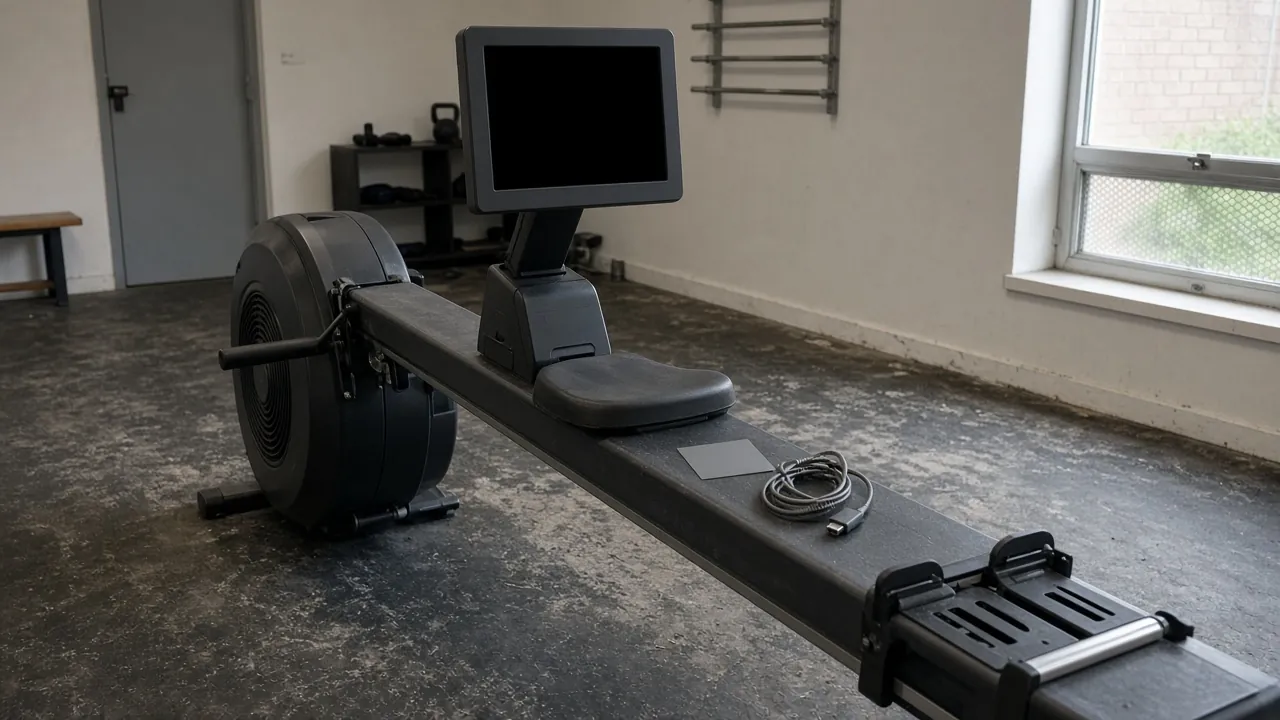
| USB port | On a PM3 or PM4, the Utility how-to puts the port on the bottom of the monitor. On a PM5 it is on the back | Square Type B plug into the monitor. Type A or Type C into the computer, matching the computer’s port | |
| Account | The Logbook FAQ says each person needs their own account, and the username has to be unique. The same email can be used if each username is unique | In the Utility, link that account if the name shows “Click to Log In” | Type the workout into that person’s log |
| Names on the card | The how-to says each LogCard can have up to five users | Upload the user whose results you mean. The list shows LogCard users and their results |
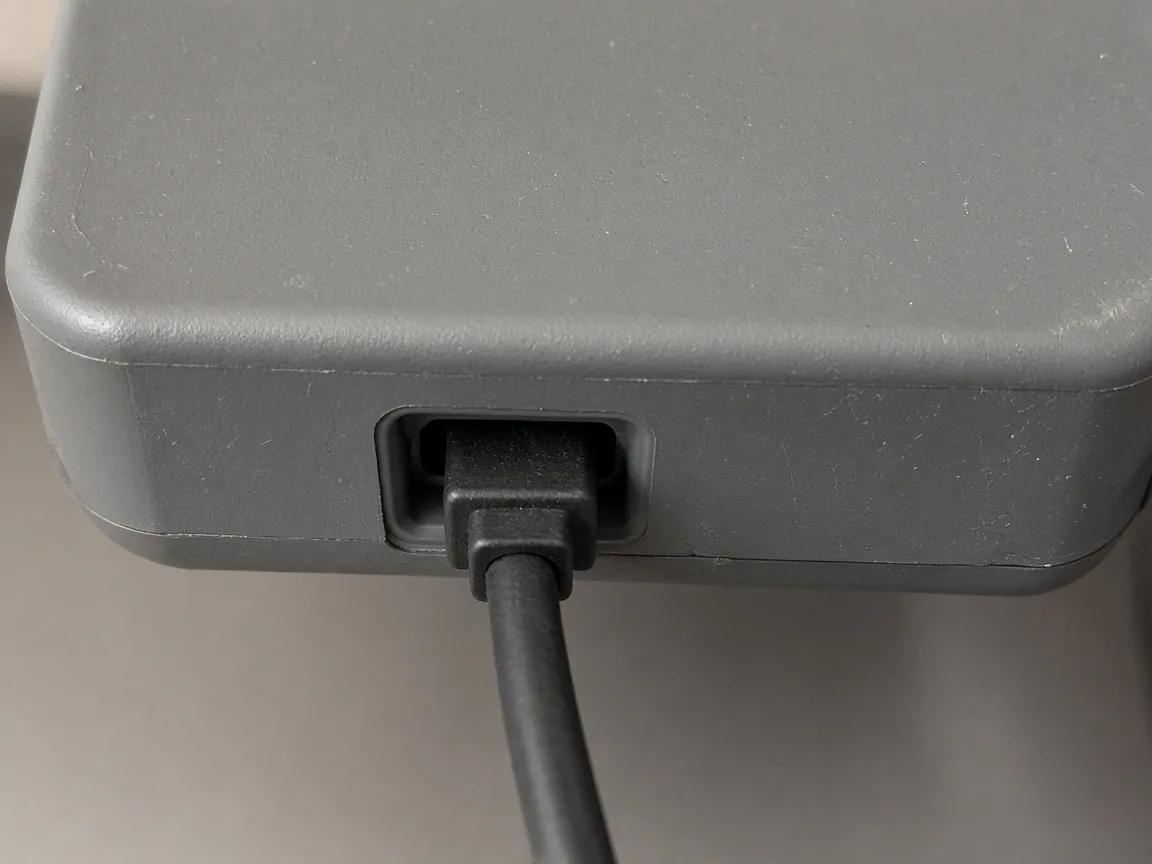
The photo shows the plug shape. The port location in the table is from the Utility how-to, not from a label in the picture.
What does the Utility ask for on a LogCard upload?
The Utility page read on October 11, 2026 offered Concept2 Utility 7.18 for Windows and Mac. The how-to says its steps are for the latest version and recommends an upgrade if you are on an older one. It does not say that 7.18 is a minimum for reading a LogCard.
To run the Utility at all, that requirements page asks for:
- Windows 10 or newer, 64-bit, on an Intel or AMD processor, or MacOS 12 or later.
- An internet connection when you upload to the Online Logbook or download firmware.
- A USB port and a USB A-B or USB B-C cable when you connect a PM3, PM4, or PM5. A PM5 firmware update or result transfer that uses only a USB flash drive does not need the cable. That flash-drive case is the PM5, not the LogCard.
- For a LogCard, the requirements page recommends a PM3 or PM4 as the card reader.
Under the Mac requirements, the same page says PM3s must be upgraded to firmware version 97 or above on a Windows PC first, and can then use a Mac for later firmware updates. That sentence is about firmware on a Mac. It is not a rule that a LogCard upload requires firmware 97.
The upload itself, from the how-to:
- Create the free online logbook if you do not have one. Keep the username, password, and Ranking ID nearby. The Ranking ID is on the logbook Profile, opened from the person icon at the upper right.
- Install the Utility, connect to the internet, and open it.
- Click Upload/Transfer Results. If the device is already connected, the how-to says to skip ahead to choosing Upload to Online Logbook.
- Select the device type, then connect it. For a LogCard, connect the PM or the card reader and insert the card.
- Click Upload to Online Logbook. The Utility reads the device and lists LogCard users and their results.
- If the line by the name is an ID plus the ranking username, the logbook is already linked. If that Ranking ID is wrong, or the line says “Click to Log In”, open the link window, enter the log.concept2.com username and password, click Get Ranking ID, and check that the ID matches the profile. Then click OK.
- Results already in the logbook are grayed out so a duplicate is not uploaded.
- For each result you want, set the columns, tick the checkbox, and click Upload Results. The checkbox beside the user name selects all eligible results for that user.
The columns on that screen:
| Column | Tick it when | The how-to’s cutoff |
|---|---|---|
| S (Slides) | The workout used Slides on a Model A, B, C, D, or E Indoor Rower | |
| D (Dynamic) | The workout was on a Dynamic Indoor Rower | |
| LWT (Lightweight) | The weight class for that result was lightweight. The how-to says this applies to indoor rowing workouts | Women: 135 lb (61.5 kg) or under. Men: 165 lb (75 kg) or under |
The same settings window states the heavyweight side as over 135 lb (61.6 kg) for women and over 165 lb (75 kg) for men. The Logbook FAQ states the rowing classes in pounds only: lightweight is 135 pounds or less for women and 165 pounds or less for men, and heavyweight is anything over those limits. You still mark L or H on every rowing piece even if the profile already has a weight. The FAQ says SkiErg and BikeErg workouts do not have a weight class.
A transfer to a spreadsheet writes a .csv of the whole USB flash drive or LogCard, including heart rate when the monitor was showing heart rate from the equipment the how-to calls appropriate. You cannot upload results to the online logbook from a .csv, and you cannot write a .csv back onto the card. For a PM3 or PM4 LogCard backup, the how-to uses an .lcb file, which can restore that card. Repair Data on a LogCard is listed for PM3 and PM4. Delete Results removes workouts from the card. It does not delete users, Lifetime Meters, or Favorite Workouts.
What is different about typing the workout on the Log page?
The Logbook FAQ gives three ways to log metres: type them on the Log page, sync them from an app such as ErgData, or upload them with the Concept2 Utility. On a PM3 or PM4, the first and the third are the ones the current ErgData page still leaves open. ErgData sync is the PM5 path above.
A piece typed by hand is not in the automatic verified class. The FAQ says pieces uploaded with the Utility from a LogCard or USB flash drive, pieces from ErgData, and pieces from races are classed as verified. To flag a manual piece as verified, it says you can use the verification code from a PM3, PM4, or PM5. It points to “Viewing a Verification Code” on the PM5 how-to page. That page was not part of the set read here, so the menu name stays blank in the table. For a PM2 or PM1 only, the FAQ says to use the contact page after the result is in the ranking and choose “Verify a Piece”.
The FAQ explains these Type labels on the add-workout form: Slides (an accessory for the RowErg), Dynamic RowErg (a separate model), SkiErg, BikeErg, and Paddle Adapter (made by Paddlesport Training Systems). It does not list every other box on that form. A mistake on an entry is edited with the pencil icon beside it.
Individual challenges need no signup. The FAQ says any result you enter or upload counts toward that challenge. A team challenge still needs the team and Join Team Challenge. Once the row is in the log, use the board, team, and deadline checks before you treat a missing name as a second logging problem.
The FAQ also says only workouts with stroke data, such as those done with ErgData, can be sent on to Training Peaks, Garmin, and Today’s Plan. It says a workout added to the Logbook can go on to Strava or Fitbit after you connect those on the Applications page. It does not say whether a LogCard upload contains the stroke data those three platforms require.
Catchup Meters, on the History page, take a start and an end period and are the FAQ’s route for a lifetime total that is behind. For the current season, May 1 to April 30, the same FAQ says it is best to enter each workout by date. A catchup block is not the dated row this page is choosing.
Takeaway: Use the Log page when there is no LogCard to read. Use the Utility when the card has the workout. The verified flag follows the Utility upload, and a typed row needs the verification code the FAQ names but does not show as a menu here.
Where these paths stop
- A PM5 is out of scope. Current ErgData is the Bluetooth app for that monitor. PM5 memory and a PM5 USB flash drive are separate Utility sources.
- The 2017 adapter sentence is not a current install guide.
- BoatCoach stays the one sentence on the ErgData FAQ. No store check, price, or phone list is added.
- This page does not say a LogCard file includes drive length, drive time, or a force curve. Those terms appear on the ErgData support page as PM data inside the current app.
- Nothing here is a training plan, a medical limit, or a promise that a challenge board will show the name. The board check is the next page once the log row exists.
- The pages were read on October 11, 2026, except the Play listing’s own “Updated on Oct 9, 2026” line. Open the Utility download page again if you need the build number it shows today.
How this page was put together
The comparison is compiled from the Concept2 pages and the January 6, 2017 overview listed under Sources. The 2017 post is used only to show what an old ErgData description claimed. Current connection limits come from the ErgData support page and the Play listing. LogCard steps, cable ends, the five-user card, the S, D, and LWT columns, firmware 97, and Utility 7.18 come from the Utility pages. Log page entry, verification class, weight class, and the challenge signup split come from the Logbook FAQ. Cells stay empty where those texts did not name the item. No monitor was connected for this page.