A finished workout that never leaves PM5 memory fails to show in that person’s Online Logbook. PM5 memory does not store a username or Ranking ID, so you link the logbook on every memory upload.
The check below is for a row that is already stored. It does not pair ErgData for the next session, and it does not choose a LogCard for a PM3 or PM4. A PM3 or PM4 uses the PM3 and PM4 logging options.
Can you upload a past PM5 workout to the logbook? Yes, if the row is still on the monitor or on a USB flash drive the Utility can read. The Utility how-to, read on October 11, 2026, says a PM5 with results in memory is one upload source, and that PM5 memory does not store a username or Ranking ID, so you link the logbook every time. A Concept2 help article dated September 5, 2024 says ErgData cannot take workouts from monitor memory after they are finished, because the app has to be connected in real time. Match the date and the distance or time on the monitor, confirm the Ranking ID against the logbook Profile, tick only that result, then find the same row in the logbook.
Quick specs
| Item | What the opened page says | Why it changes the check |
|---|---|---|
| ErgData after the piece | Help article dated September 5, 2024: you cannot transfer workouts from the monitor’s Memory to ErgData after they have been completed. The app needs to be connected to the PM5 in real time. | Pairing the phone later does not pull the stored row |
| During the workout | ErgData page, read October 11, 2026: free app, PM5 only, Bluetooth only. Do not use a USB stick in the PM5 at the same time, because that can interfere with workouts being saved. | A stick left in the monitor is a save problem, not an upload method |
| Who the memory row belongs to | Utility how-to: PM5 memory does not store your username or Ranking ID. You link the online logbook every time you upload from PM5 memory. | The list is not labeled with the athlete |
| What the monitor can show | PM5 how-to: stored workouts appear as a final result for the total distance or time, plus splits. List by Date or List by Type. | Those are the fields you can match. No sample row is filled in here |
| Dates already stored | PM5 how-to: it is not possible to edit the dates and times of past workouts. | A wrong clock on a gym monitor stays on that stored row |
| Duplicates | Utility how-to: the Utility compares the device with results already in your online logbook and grays those out. | A row that is only in someone else’s log is still selectable |
| Flash drive | PM5 how-to: flash-drive steps apply only to PM5s with a USB-A port. PM5s made prior to June 2024 were equipped with one. | The cable path is a separate sentence in the same how-to |
| After a PM5 upload | Utility how-to: results remain in PM5 memory unless you delete them on the monitor. | The next person can still see the row |
The photo shows a blank screen. Menu names in the steps below come from the PM5 how-to, not from this picture.
Can ErgData send a workout that is already in memory?
No. The help article dated September 5, 2024 says you cannot transfer workouts from the monitor’s Memory to ErgData after they have been completed. The app needs to be connected to the PM5 in real time to upload to the Online Logbook. Workouts entered manually, or through the Utility, in the Online Logbook will sync with ErgData. If you want past workouts from Memory to appear in ErgData, that article says to enter them in the Online Logbook and sync the app.
The same article says the Utility is the route for multiple past workouts, and that you need a USB cable or a flash drive. For just a few workouts, it says manual entries will suffice. It does not give a cutoff number for “a few” or “multiple”.
The ErgData page read on October 11, 2026 says the app is compatible with the PM5 only and connects via Bluetooth only. It also says not to use a USB stick in the PM5 at the same time as ErgData, because that can interfere with workouts being saved. That sentence is about a stick left in during ErgData use. It is not a way to move an old memory row to the phone.
Concept2’s July 1, 2020 post on shared machines calls ErgData the easiest capture from a PM5: pair the phone, do the workout, and sync. The same post says that if you forgot to record the workout, you go back to PM5 Memory and identify which workout is yours. This page starts at that second sentence.
Takeaway: A later Bluetooth connection does not pull a finished memory row. Use the Utility, or type a few rows on the Log page.
How do you match your row before anyone uploads it?
The July 1, 2020 post says a shared machine can hold more than one athlete’s workouts, and that you have to identify which memory workout is yours. The PM5 how-to, for the current firmware, lists Main Menu items Just Row, Select Workout, Connect, Memory, and More Options. It says older firmware can show different menu options. Those older names are not in the paragraph, so they stay blank here.
To view memory on the current menu:
- On the Main Menu, select Memory. If a USB flash drive is in use, the how-to says this fourth item is labeled USB Logbook instead, and the workout was stored on the drive rather than in memory.
- Choose List by Date, or List by Type. For List by Type, choose a type and then List Workouts.
- Use the up and down arrows to reach the workout, then select the magnifying glass, which the how-to calls the fourth button on the right.
The stored line is a final result for the total distance or time, plus splits. Write those down. This page does not supply an example distance, an example date, or a count of rows on any machine.
The same how-to says it is not possible to edit the dates and times of past workouts. Set the clock before you row if you can. On a gym monitor that was already wrong, the stored date stays wrong. The PM5 stores over 1000 workouts in memory. A full memory is not a list of yours.
Just Row saving is stated in two places, and they are not the same sentence:
| Where it is saved | What that section says is kept |
|---|---|
| PM memory | Just Row workouts longer than one minute or longer than 100 meters, and preset workouts, are saved automatically. After the last stroke of a Just Row, press Menu twice, or wait 6 seconds and press Menu once. |
| USB flash drive | A defined workout ends when it is complete. A Just Row, interval, or uncompleted workout must be ended with Menu. A Just Row less than one minute in length will not be logged. |
If the row is not in Memory and not on a flash drive, these pages do not describe a way to recreate it.
Copy this sheet and fill it from the monitor. Leave a cell empty when you cannot tell.
| What to copy from the monitor | What you saw | Upload this row? |
|---|---|---|
| Date from List by Date | ||
| Total distance or total time on the detail screen | ||
| Splits, if two rows look alike | ||
| Memory, or USB Logbook | ||
| Ranking ID on the logbook Profile | ||
| Ranking ID after Get Ranking ID |
Takeaway: Tick a row only after the date and the distance or time match a workout you did. If they do not, leave the upload column empty.
Which device should the Utility read?
Use one row. Empty cells are items the opened pages did not name.
| Where the workout is | What the opened pages say to use | Left blank |
|---|---|---|
| PM5 memory. The menu item says Memory. | Concept2 Utility. The how-to says to attach the PM5 with a USB cable. The plug into the monitor is Type B, and on a PM5 that port is on the back. The computer end is Type A or Type C, matching the computer. | The how-to points to “Which Ports Does My PM5 Have?” That page was not opened, so other port names stay blank. |
| USB flash drive. PM5s made prior to June 2024 were equipped with a USB-A port, and flash-drive steps apply only to PM5s that have one. | Put the drive in the computer for the upload. Each drive holds one user. The first insert asks for a user name, shown at the upper right after the monitor recognizes the drive. Formats named: FAT and FAT32. Concept2 Utility version 7 or higher can also initialize a drive. | Whether a PM5 made after June 2024 has a USB-A port is not stated in the sentences read here. |
| A few past workouts, and you will type them | The September 5, 2024 help article says manual entries will suffice for just a few, on the Log page the Logbook FAQ names. | The FAQ does not list every box on the add-workout form. |
| Nothing saved | No recovery step was in the pages read here. |
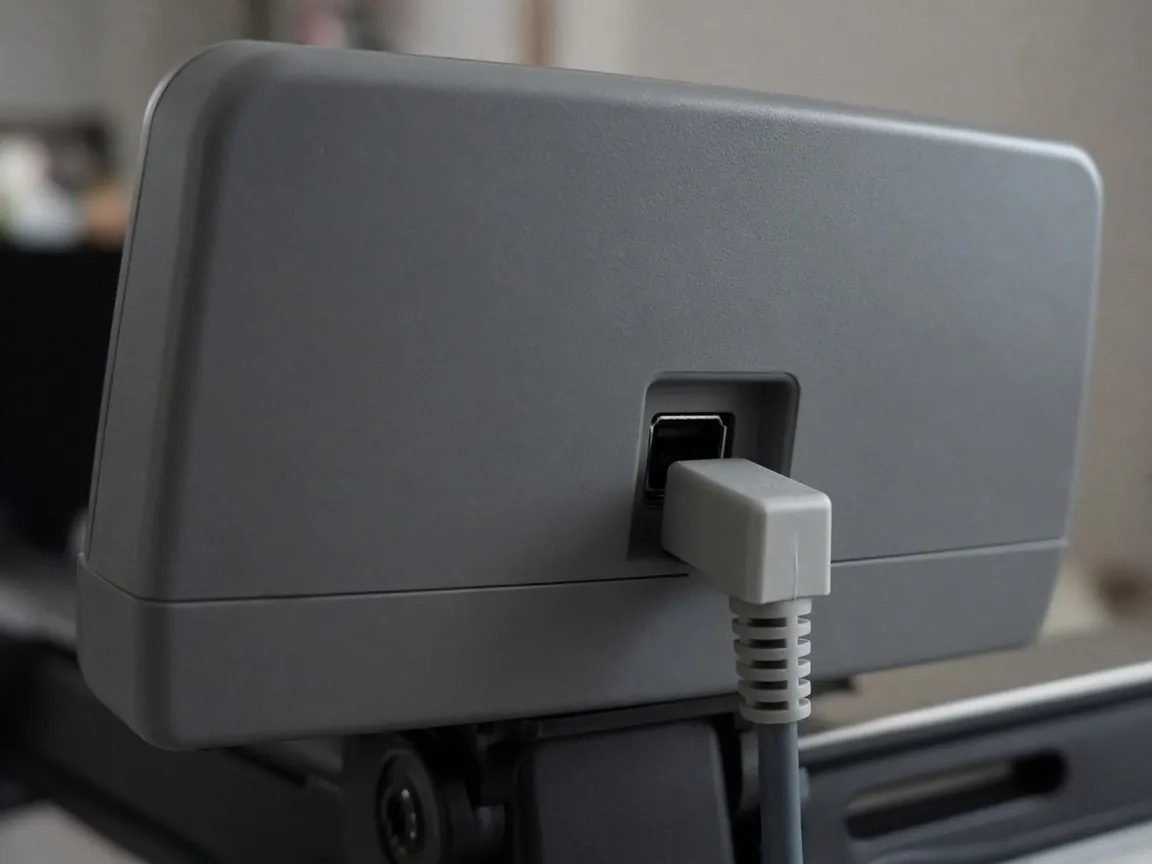
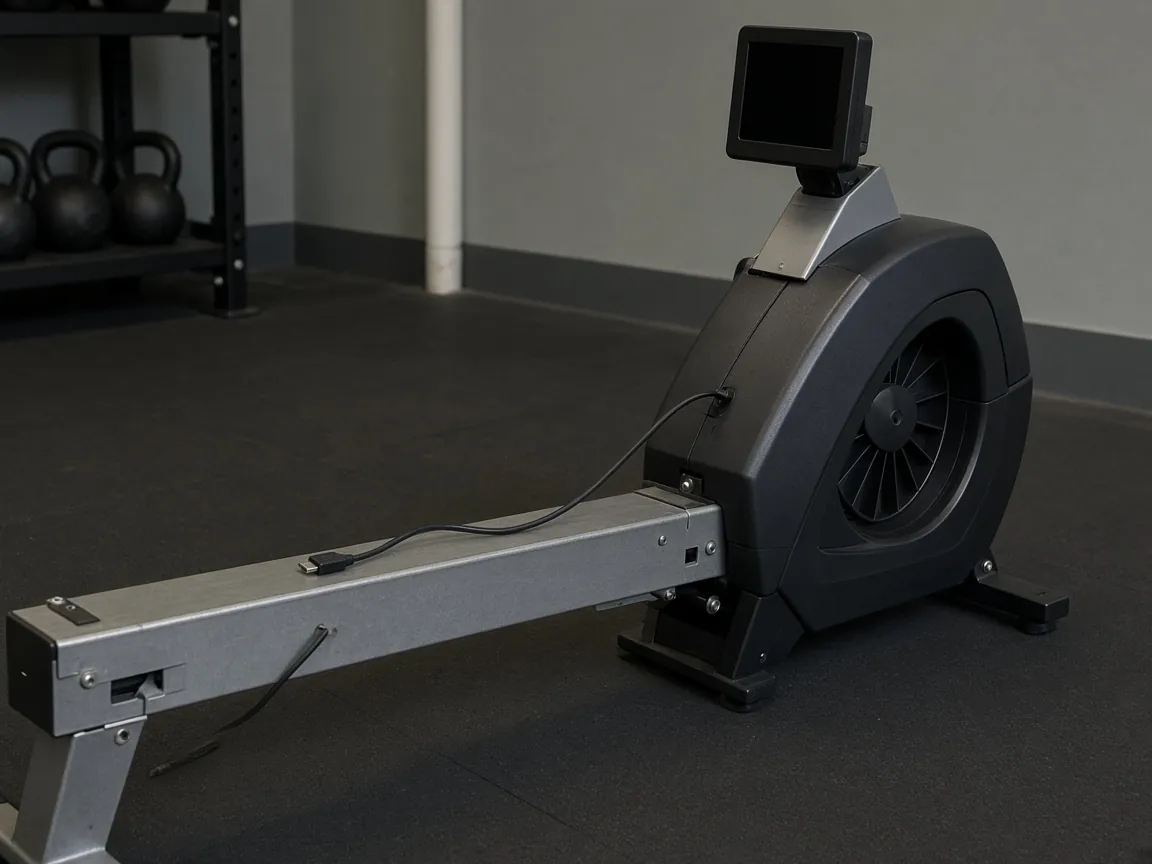
The photo shows the plug shape. It does not show a port label. The back-of-PM5 location is from the Utility how-to.
To move one memory workout onto a flash drive, the PM5 how-to gives this sequence, and it sits in the USB-A section:
- Insert an initialized USB flash drive and press Menu.
- On the Welcome screen, select USB Logbook.
- Select Logbook Utilities, then Move Workout.
- Select the workout, then Move to USB Log.
That move is how one matched row leaves memory for a drive. It is not a reason to move every row on a shared monitor.
The software index page describes the Utility as free desktop software for OSX or Windows that uploads from a USB flash drive or a LogCard. The Utility how-to, which is the procedure page, also lists a PM5 with results in memory. For this task, follow the how-to.
What do you check on the Utility screen?
The how-to says its steps are for the latest Concept2 Utility, and to upgrade an older copy. It does not print a build number in the section read here. You need an internet connection and an online logbook. Keep the username, password, and Ranking ID nearby. The Ranking ID is on the logbook Profile, opened from the person icon at the upper right.
For a PM5 memory upload:
- Open the Utility and click Upload/Transfer Results. If the monitor is already connected, the how-to says to skip ahead to Upload to Online Logbook.
- Select the device. For memory, attach the PM5 with the USB cable. For a flash drive, insert the drive into the computer.
- Click Upload to Online Logbook. The Utility reads the device and lists the results.
- Because PM5 memory does not store a username or Ranking ID, link the logbook on this upload even if you linked it last time. Choose Click to Log In. Enter the log.concept2.com username and password, click Get Ranking ID, and check that the ID matches the Profile. Then click OK. If it does not match, or the link fails, the how-to says to contact Concept2 for assistance.
- Results already in your online logbook are grayed out so a duplicate is not uploaded. Gray means “already in this logbook.” It does not mean “this row belongs to the person at the monitor.”
- Set the columns only for the result you matched, tick that result’s checkbox, and click Upload Results.
The how-to also says the checkbox to the left of a user name selects all eligible results for that user. PM5 memory has no username stored. On a shared monitor, leave that checkbox alone.
| Column | Tick it when | Cutoff in the how-to |
|---|---|---|
| S (Slides) | The workout used Slides on a Model A, B, C, D, or E Indoor Rower | |
| D (Dynamic) | The workout was on a Dynamic Indoor Rower | |
| LWT (Lightweight) | The weight class for this result was lightweight | Women: at or under 135 lb (61.5 kg). Men: at or under 165 lb (75 kg) |
The Logbook FAQ states the rowing classes in pounds only: lightweight is 135 pounds or less for women and 165 pounds or less for men, and heavyweight is anything over those limits. It says you still mark L or H on every rowing piece even if the profile has a weight. SkiErg and BikeErg workouts do not have a weight class in that FAQ.
After the upload, the how-to says the results remain in PM5 memory unless you delete them on the monitor. A separate memory-delete menu was not in the section read here, so those button names stay blank. The USB-A section does name a delete for a drive: USB Logbook, Logbook Utilities, Delete Workout, then the workout, then Delete. That sequence starts by inserting an initialized flash drive. It is not a memory-delete procedure.
Takeaway: Link the Ranking ID, then tick one matched result. Do not clear the whole memory list into one logbook.
What do you look for in the logbook afterward?
Find the row you uploaded. The delete steps in the Logbook FAQ name two lists: Latest Workouts on the homepage, and the Season view. The FAQ does not name a search box, so none is added here. Compare the date and the distance or time with the sheet you filled in on the monitor.
If the row should not be in this logbook, the FAQ says to click one of the icons next to it in Latest Workouts or the Season view, then click Delete on the next page. A mistake on an entry uses the pencil icon, which opens the Edit Workout page. The FAQ does not list which fields that page can change, so this page does not say the stored monitor date can be rewritten there.
Verified status is two sentences, and they do not use the same list:
| Page | What it says is verified without typing a code | Does that sentence say “PM5 memory”? |
|---|---|---|
| PM5 how-to | Pieces uploaded with the Concept2 Utility or ErgData are considered verified automatically. A verification code is not needed for those uploads. | No. It says Utility or ErgData. |
| Logbook FAQ | Utility uploads from a LogCard or a USB flash drive, pieces from ErgData, and pieces from races. | No. The parenthetical says LogCard or USB flash drive. |
A 16-digit verification code is based on workout date, distance, and duration. The PM5 how-to says these codes are used primarily for Concept2 world and national records, and are not needed for the Online Logbook, Rankings, or challenges. To flag a manually entered piece as verified in the Ranking, the FAQ says you can enter the code from a PM3, PM4, or PM5. On the View Detail screen, current firmware shows a V in a circle on the fourth gray button; press it once. Older firmware has no action on that button; press it twice. The code appears at the upper right. The how-to also says to be on the latest firmware, with an accurate clock, before you rely on that code.
A row in the logbook is the end of this check. It does not, by itself, put a name on a challenge board. When the workout is already in the log and the name is still missing, use the board, team, and deadline checks.
Where this check stops
- ErgData pairing for the next session is a different task. When several people use one phone or tablet for separate sessions, use the shared ErgData profile handover checklist before the next start. This page starts after the workout is already stored.
- A PM3 or PM4 LogCard is the other logging page. The five-user card limit belongs there.
- A workout that was never saved is not reconstructed here.
- The button sequence for deleting a row from PM5 memory, as distinct from a USB Logbook delete, was not in the section read for this page.
- Nothing here is a training plan, a medical limit, or a promise that a challenge will accept the row.
- The pages were read on October 11, 2026. The shared-machine post is dated July 1, 2020. The ErgData help article is dated September 5, 2024.
How this page was put together
The check sheet is compiled from the Concept2 pages listed under Sources. Memory menus, the USB-A limit, the June 2024 flash-drive sentence, the “over 1000 workouts” line, the ban on editing past dates, and the verification-code button come from the PM5 how-to. The Ranking ID link, the gray duplicate rows, the S, D, and LWT columns, and the note that a PM5 upload leaves memory in place come from the Utility how-to. The real-time ErgData limit and the split between a few manual entries and a Utility upload come from the September 5, 2024 help article. The “identify which workout is yours” line comes from the July 1, 2020 post. Cells stay empty where those texts did not name the item. No monitor was connected for this page.