Saving the wrong proof after a row can leave a result rejected for an official record claim or missing a verified flag in the rankings. Separate ordinary Concept2 Logbook entries, verified Online Rankings pieces, and official individual or team record submissions before anyone clears the monitor screen.
How do you verify rowing times on Concept2? Match the proof to the destination first. According to Concept2’s PM5 guide and Logbook FAQ (checked October 17, 2026), ordinary Online Logbook entries and seasonal challenges do not require a 16-digit verification code. In the Online Rankings, pieces uploaded directly through ErgData, the Concept2 Utility (from a USB flash drive or LogCard), or official races are classed as verified automatically, while a manually entered ranking piece uses the 16-digit code from a PM3, PM4, or PM5. Official Concept2 world and national records add strict machine, witness, video, or signed relay-log requirements beyond a basic log entry.
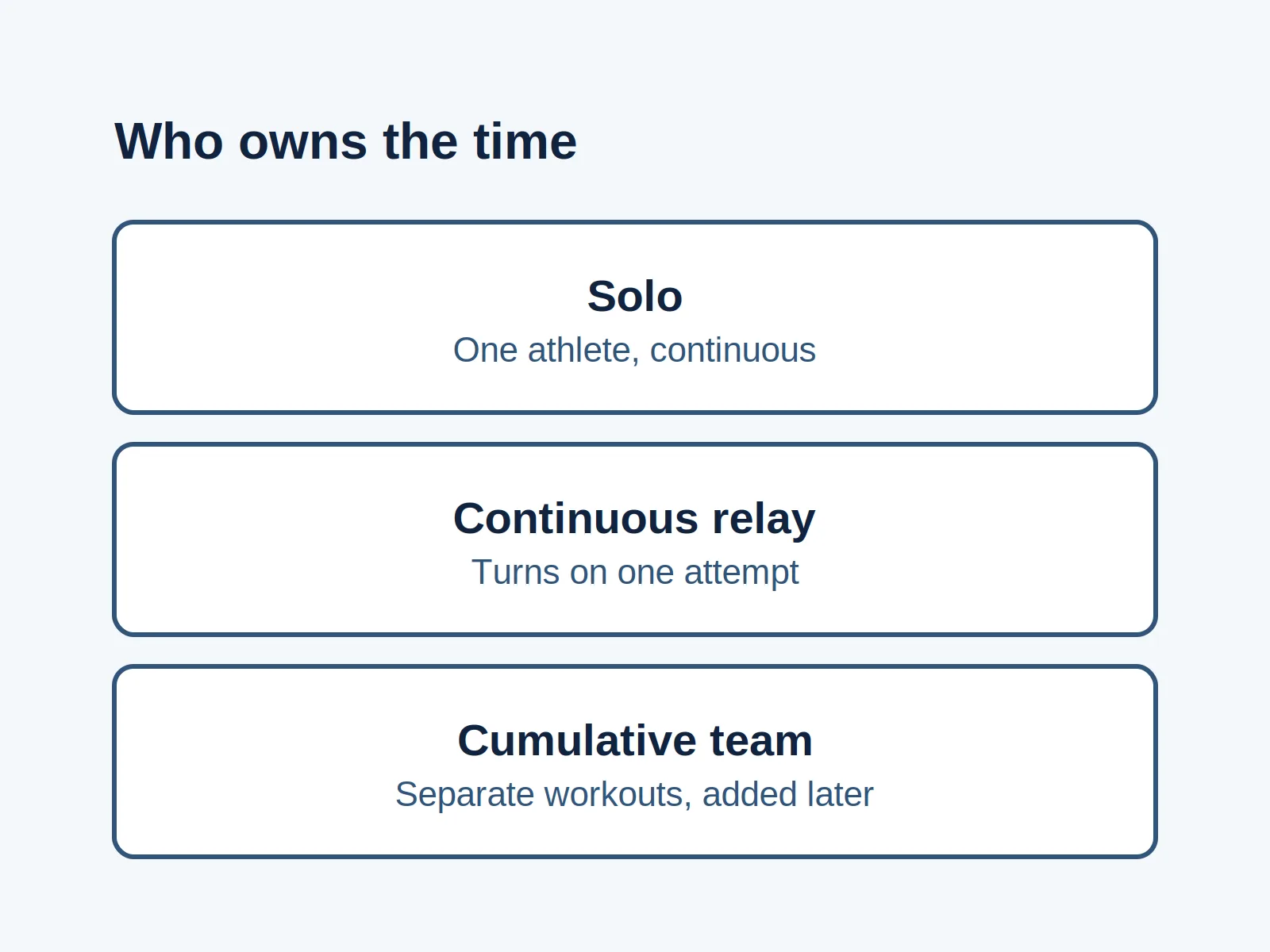
This guide organizes Concept2’s published verification rules by purpose, checks what makes a monitor code, upload, witness statement, or continuous video acceptable, and provides a privacy-safe blank relay reading sheet. If your group has not yet decided between cumulative workouts, a live race, or a relay, start with our indoor rowing challenge vs race format comparison.
Compare the three verification uses first
Read across the row that matches where your result will be used. The table below is an editorial synthesis of Concept2’s PM5 manual, Logbook FAQ, and Record Requirements pages read on October 17, 2026.
| Target use | Is verification required? | Accepted proof in official Concept2 rules | Common disqualifier or mismatch |
|---|---|---|---|
| 1. Ordinary Online Logbook & seasonal challenges | No verification code needed according to the PM5 how-to | Workouts entered manually or uploaded via ErgData or Concept2 Utility into the Online Logbook | Missing a challenge enrollment deadline, privacy toggle, or team two-member rule (check missing challenge meters) |
| 2. Concept2 Online Rankings (“verified” flag) | Optional to rank; required only to display the “verified” flag | Automatic when uploaded directly via ErgData, Concept2 Utility (LogCard or USB flash drive), or race results; or manual entry of the 16-digit PM3/PM4/PM5 verification code (PM1/PM2 use Logbook contact page > Verify a Piece) | Attempting to rank an interval piece, a rolling-flywheel start, a Just Row piece that does not match an exact ranking distance/time, or a past-season workout |
| 3. Official Concept2 Individual Records | Mandatory under Concept2 Individual Record Requirements | Level unmodified RowErg, Dynamic, or SkiErg; single distance/time from a non-moving flywheel; plus at least one of: (a) 16-digit PM code or direct ErgData/Utility upload, (b) public setting with reachable witnesses, or (c) single continuous video from setup to Memory screen. Static 2,000m requires a sanctioned event with witnesses | Taking a phone photo of the summary screen without the 16-digit verification code visible, or stopping video before opening monitor Memory |
| 4. Official Concept2 Team & Relay Records | Mandatory under Concept2 Team Record Requirements | Single RowErg or SkiErg (PM3/PM4/PM5) for standard records; flywheel cannot stop spinning until completion; witness-signed changeover logsheet with start/end PM readings, age, and weight class; .csv from USB/LogCard or signed manual log with photo and publicity links; plus at least one verification pathway (code/upload, public witnesses, or continuous video) |
Letting the flywheel stop during a handover on a standard team record, resetting the monitor between turns, or omitting witness signatures |
Concept2 record recognition and Guinness World Records certification are separate processes governed by different organizations. Meeting Concept2’s team or individual requirements does not satisfy an external record body’s evidence packet, and a private charity challenge can set its own gentler rules if it is not submitting a claim to Concept2.
Takeaway: Decide whether the session is for a casual challenge total, a seasonal Online Ranking, or an official Concept2 record before the first stroke—two of those paths require zero extra paperwork during the workout, while a record attempt requires setup proof before the flywheel moves.
How do you view and use the 16-digit verification code?
A verification code is a 16-digit code generated by a PM3, PM4, or PM5 monitor from the workout’s date, distance, and duration. Concept2’s PM5 guide notes that you do not need this code when uploading directly with ErgData or the Concept2 Utility, because those uploads are marked verified automatically.
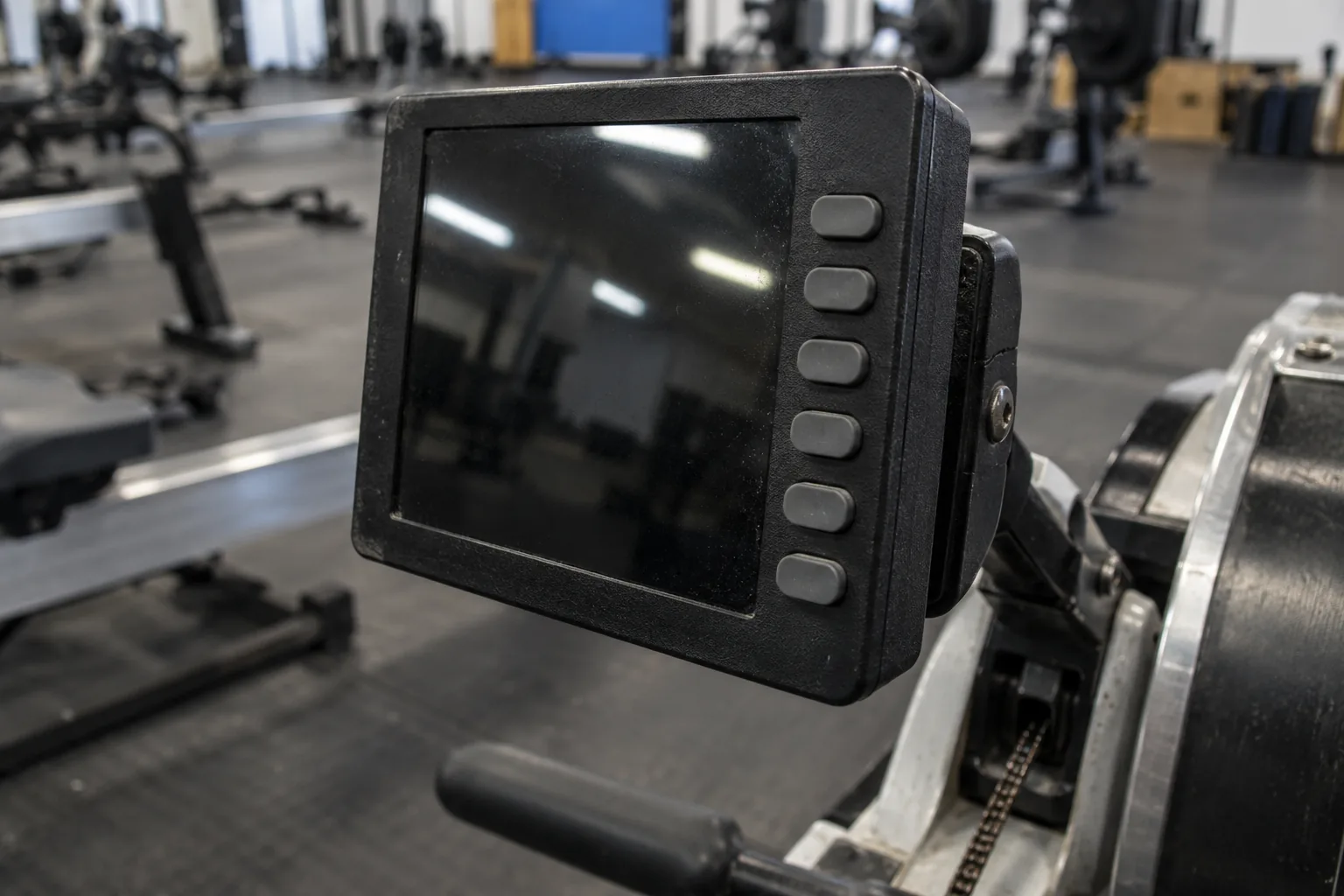
When a workout was entered into the Online Logbook by hand—or when you need a screen photograph showing the code for a record packet—Concept2’s PM5 instructions give this sequence to display the 16-digit code:
- Check the monitor before rowing: Make sure the Performance Monitor is running current firmware and that its date and time are accurate. As covered in our past PM5 workout upload guide, dates and times stored on past workouts cannot be edited later.
- Open the workout detail screen: Immediately after finishing, select View Detail. To retrieve a past workout from monitor storage, go to Main Menu > More Options > Memory (or USB Logbook > List By Date if saved to a USB flash drive) and press the magnifying glass icon for that workout.
- Display the 16-digit code on the PM5: On the View Detail screen, look at the fourth gray button on the right. On PM5 monitors with current firmware, that button shows a V inside a circle—press it once. On PM5 monitors with older firmware, the fourth gray button has no label—press it twice. The 16-digit verification code appears in the upper right corner of the screen.
- Attach the code to a manual Logbook entry: In the Concept2 Online Logbook, open the entry with the pencil icon and enter the 16-digit code to mark the ranked piece as verified. Note that editing an already-ranked workout removes it from the rankings; click the blue rank link in the Status column on the main Logbook page to put it back.
If you row on an older PM3 or PM4, see our PM3 and PM4 logging options guide for LogCard and cable transfer choices. Athletes using a historic PM1 or PM2 cannot generate a 16-digit code on the unit; Concept2’s Logbook FAQ instructs them to rank the piece first and then submit it through the Logbook contact page under Verify a Piece.
Why third-party app verification is a separate rule
In search results for Concept2 verification, third-party virtual rowing software often appears beside Concept2’s own pages. For example, EXR’s support documentation states that you must connect your PM over Bluetooth through EXR’s connection screen and pick a session from the Concept2 Verified Workouts category in Training Mode so EXR programs the monitor and syncs a verified, rankable piece to the Concept2 Logbook. Programming the PM manually while running EXR is not supported for that workflow. Treat third-party app verification as an app-specific sync requirement, not a substitute for Concept2’s witness or video rules on an official record claim.
Takeaway: If you photograph a monitor screen as proof for Concept2, display the 16-digit verification code in the upper right corner first—a plain summary screen photo without the code is explicitly rejected as verification by Concept2.
Check which evidence format satisfies your claim
Before submitting a piece through Concept2’s Verify a Piece or Claim a New Record contact forms, verify every item in the row that matches your proof method.
| Proof method | What Concept2’s published rules require | Where it applies | What causes rejection |
|---|---|---|---|
| Automatic digital upload (ErgData or Concept2 Utility) | Direct upload from the ErgData app (real-time Bluetooth on PM5) or via the Concept2 Utility from a USB flash drive, LogCard, or PM memory | Online Rankings verified status; satisfies the verification-code prong of standard individual and team records | Failing to confirm BikeErg calibration when prompted; leaving a USB stick in the PM5 while using ErgData; uploading under the wrong athlete’s profile (use a profile handover check) |
| 16-digit PM verification code (or screen photo with code) | 16-digit code generated by PM3, PM4, or PM5 from date, distance, and duration; a monitor photo is acceptable only when this 16-digit code is visible on the screen | Flagging a manually entered Online Ranking piece; verification prong for standard records | Photographing the workout summary screen without pressing the fourth right-hand button to show the 16-digit code |
| Public performance with reachable witnesses | Completed in a public setting—defined by Concept2 as a health club, fitness center, rowing club, indoor rowing race, trade show or regatta where Concept2 is present, school, university, or public special event such as a mall fundraiser—with witness names and contact details | Standard individual and team records; mandatory sanctioned-event witness rule for static 2,000m individual records | Listing family or friends at a private home gym when a public venue or independent supervision is required |
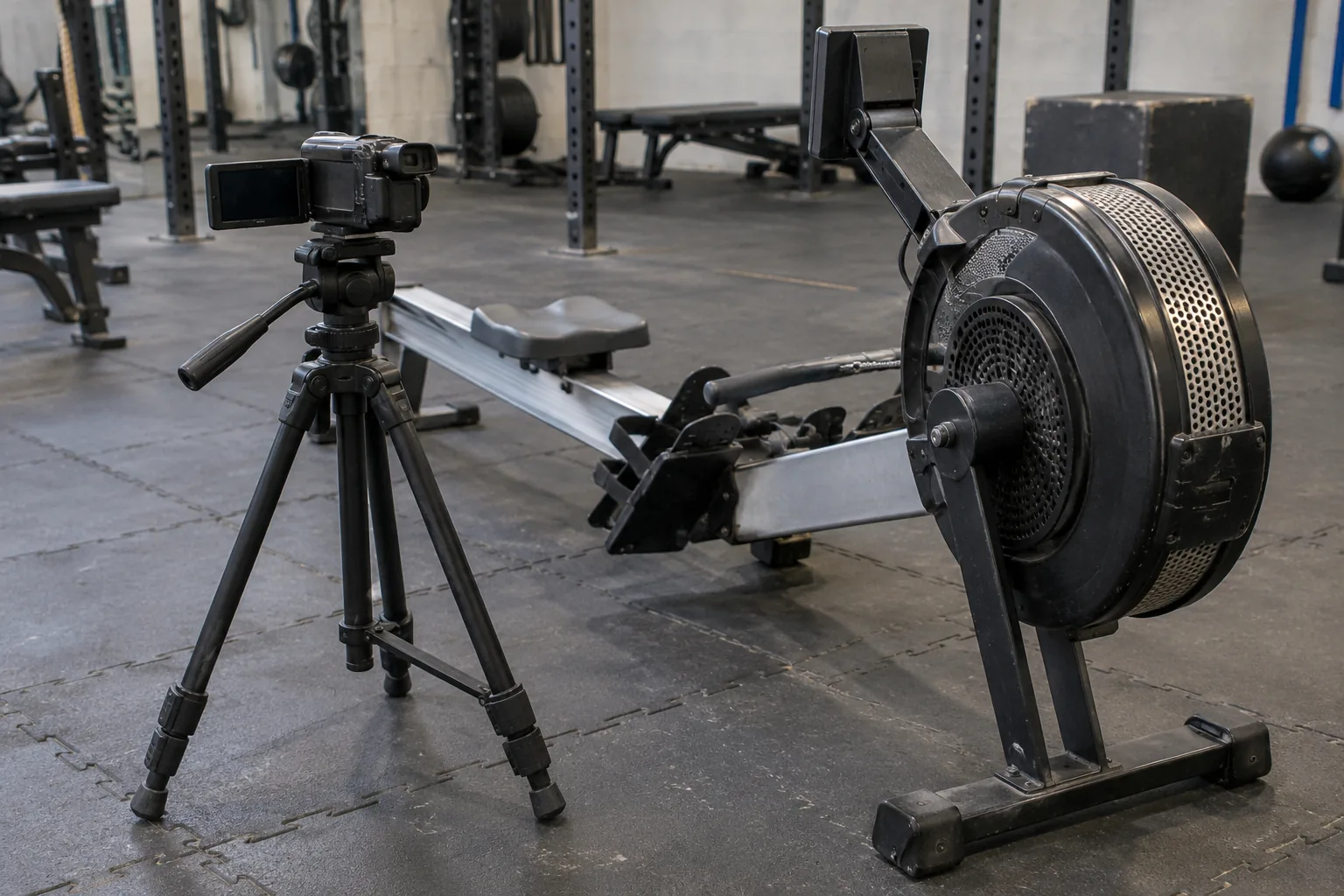
| Single continuous video recording | One continuous, unedited video shot showing: (1) setting up the workout on the monitor, (2) all of the rowing or skiing, and (3) the workout displayed afterward in monitor Memory (not merely the last screen of the workout). Uploaded to a host such as YouTube or Vimeo with a full link | Verification prong for standard records; mandatory single-take video rule for pre-approved online 2,000m record races | Cutting the camera between turns, skipping the pre-row monitor setup, or filming only the finish screen instead of opening Memory |
Special rules for 2,000-meter and lightweight record claims
Concept2 separates the static indoor rower 2,000-meter record from other distances:
- Static RowErg 2,000 meters: Must be rowed at a Concept2-sanctioned indoor rowing event with witnesses present, and must be rowed without Slides (Dynamic and Slides 2,000-meter records have their own categories and follow the standard three-option verification list).
- Online 2,000-meter races: Do not count for a record unless approved beforehand by Concept2. They require a single-take video (close-up of the monitor before the start, clear view of athlete and machine throughout, and close-up of the monitor after the finish) plus age documentation on request.
- Lightweight weigh-in window: For both individual and team records in lightweight categories (Women: at or under 135 lbs / 61.5 kg; Men: at or under 165 lbs / 75 kg; Heavyweight is over 135 lbs / 61.6 kg for women and over 165 lbs / 75 kg for men), athletes must be weighed in no earlier than two hours before their row. For online 2,000-meter records, Concept2 specifies independent supervision on approved scales rather than personal scales witnessed by family or friends.
What extra rules apply to team relays and 24-hour or ultra-distance records?
A charity or club relay that wants an official Concept2 Team Record cannot use the casual “reset the monitor for each person” workflow used in cumulative challenges. Concept2’s Record Requirements for Teams set specific mechanical and administrative boundaries:
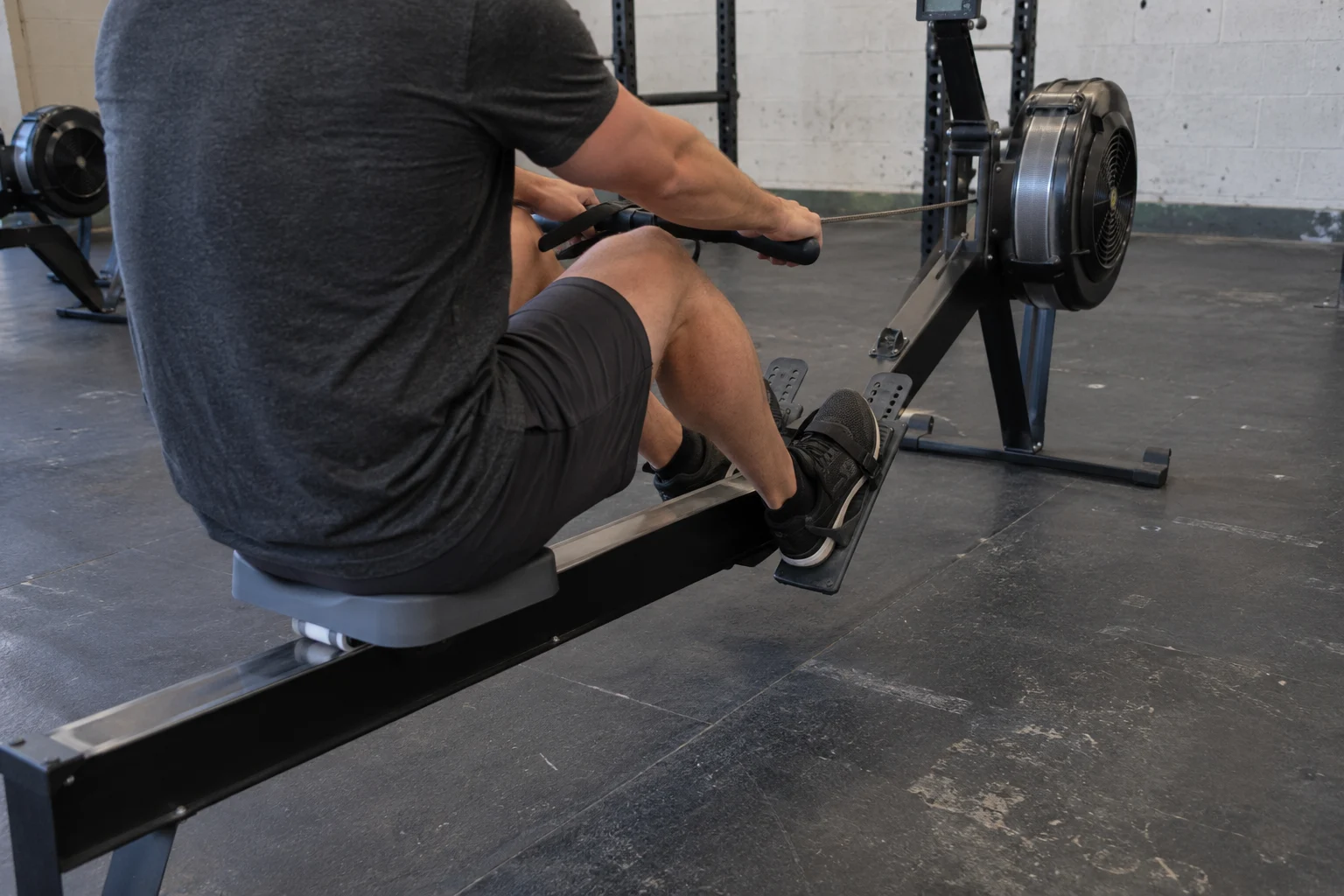
- Single machine, continuously spinning flywheel: Standard team records must use a single Concept2 RowErg or SkiErg with a PM3, PM4, or PM5 on a level surface without performance-altering modifications, and the flywheel cannot stop spinning until the attempt is complete. (Note the contrast: Concept2’s individual ultra-distance rules allow the flywheel to stop during rest breaks so long as rest time counts toward elapsed time, and the High School 4-Erg Million Meter Row has its own 4-machine ErgRace SUM setup.)
- Exact monitor programming by ultra-distance event:
- 100,000 Meter Row/Ski (for time): On a PM5 with current firmware, set a single distance of 100,000 meters. On a PM3, PM4, or unupdated PM5, choose Select Workout > New Workout > Intervals: Variable and set a single distance interval of 100,000 meters with 0:00 rest.
- 24 Hour Row/Ski (for distance): Choose Select Workout > New Workout > Intervals: Variable and set a single time interval of 24 hours with 0:00 rest. (For individual 24-hour attempts, Concept2 also notes that the athlete must row or ski within each of the 24 hours.)
- Million Meter Row/Ski (for time): Choose Select Workout > New Workout > Intervals: Variable and set one distance interval of 900,000 meters followed by one distance interval of 100,000 meters, with 0:00 rest.
- Longest Continual Row/Ski (for time): Use Just Row / Just Ski, noting that the PM3, PM4, and PM5 counter flips back to
0after every 50,000 meters.
- Team size, gender split, and age category:
- Tandem (2 people): Both athletes must row at least 40% of the total time (for a 24-Hour or Longest Continual Row) or at least 40% of the total meters (for a 100,000-Meter or Million-Meter Row).
- Small team (3–10 people) and Large team (over 10 people): Recognised in men’s, women’s, or mixed divisions. A mixed team must consist of at least 1/3 men and 1/3 women, and both the collective men and collective women must complete at least 1/3 of the total time (for timed records) or 1/3 of the total distance (for distance records).
- Age and weight categories: Outside the Junior category (where all members must be 19 or under), the youngest team member’s age sets the team’s 10-year age bracket (20–29, 30–39, 40–49, etc.), and no one aged 19 or under can join an older bracket. A team combining lightweight and heavyweight athletes is classified as heavyweight.
- Required submission packet: You must send Concept2 the witness-signed changeover logsheet, the
.csvfile from your USB flash drive or LogCard (or signed manual record with a photo if possible), and copies of or links to any publicity the attempt received.
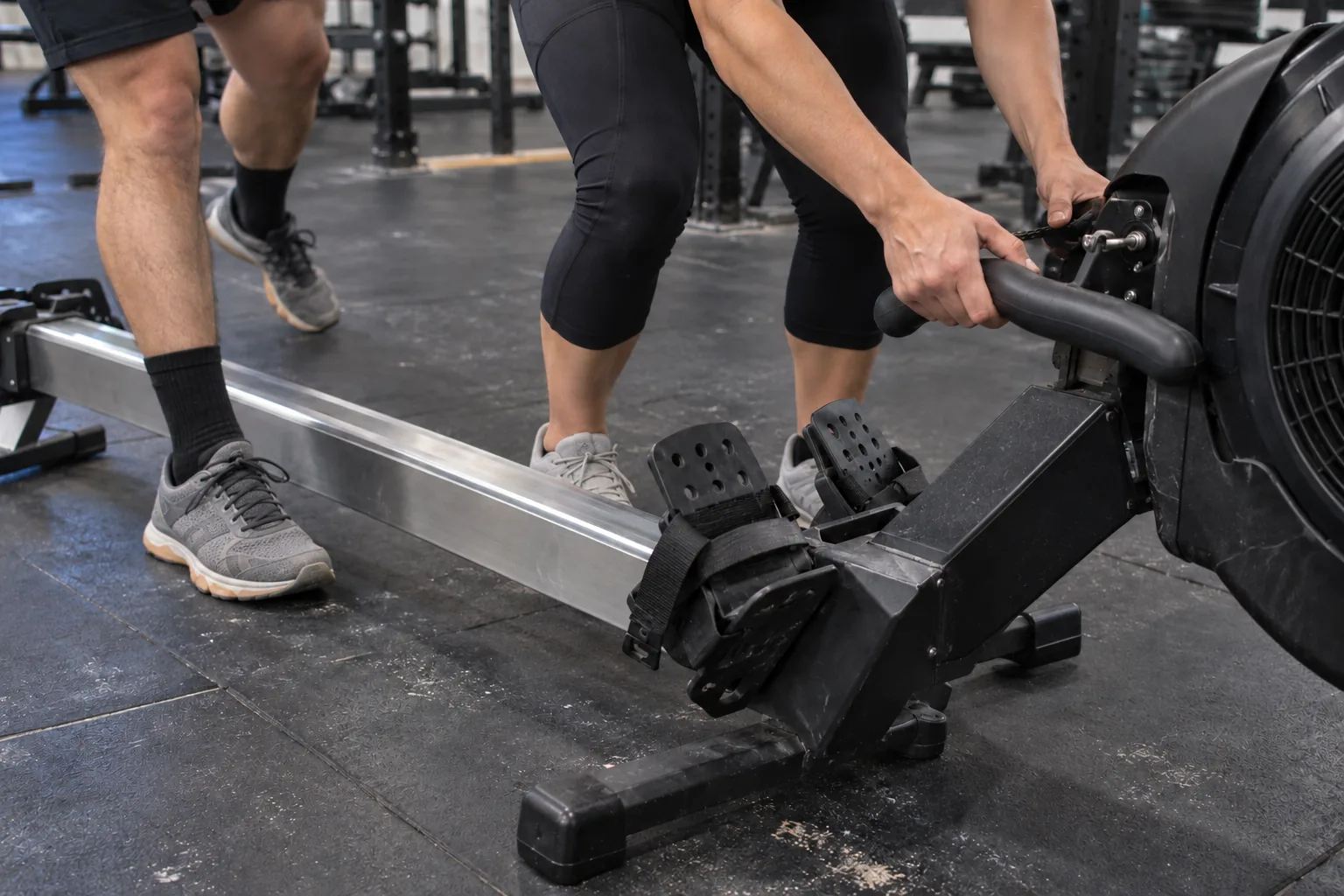
Takeaway: Rehearse the changeover before starting a standard Concept2 team record attempt—if a slow foot-strap swap lets the flywheel stop spinning, the attempt no longer meets the standard team record requirement.
Copy this blank relay raw-reading and witness logsheet
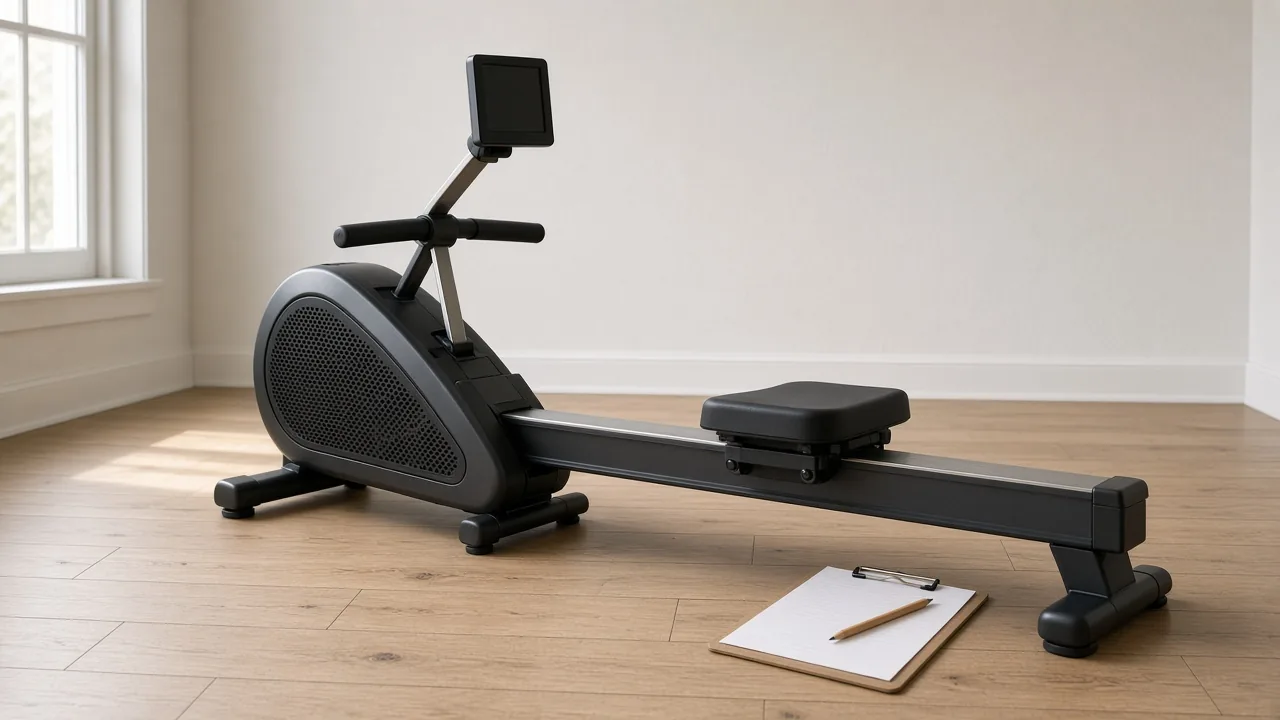
Concept2’s Team Record Requirements state that your documentation must include a witness-signed logsheet showing who rowed, when they rowed, what the Performance Monitor read (meters/time) when they started and ended their session, and their age and weight class.
Copy the two tables below for your event clipboard or spreadsheet. To protect participant privacy on a shared gym desk, use an agreed roster code or participant label on the public floor sheet and keep dates of birth, email addresses, and personal contact details in the event organizer’s private file until submitting to Concept2.
Table A: Attempt header and verification summary
| Header field | Official rule reference | Entry (leave blank until checked) |
|---|---|---|
| Event category & target | 100,000m / 24-Hour / 1,000,000m / Longest Continual / Other | |
| Machine & monitor model | Single RowErg or SkiErg with PM3, PM4, or PM5 on a level surface | |
| Monitor setup path | Direct distance, Variable Intervals (0:00 rest), or Just Row (50,000m rollover noted) |
|
| Team size & division | Tandem (2, >=40% each) / Small (3–10) / Large (>10); Men / Women / Mixed (>=1/3 each) | |
| Age bracket & weight class | Determined by youngest member (or all <=19); Hwt or Lwt (weighed <=2h prior) | |
| Primary verification pathway | 16-digit PM code / USB or LogCard .csv / Public witnesses / Continuous video to Memory |
|
| Independent witness confirmation | Witness name, role, and signature confirming flywheel continuity and readings |
Table B: Turn-by-turn changeover and monitor reading log
Record the exact Performance Monitor cumulative reading at the start and end of every turn. Do not fill cells from memory or estimate splits after the workout.
| Turn # | Participant label (roster ID) | Age bracket & weight class (Hwt / Lwt <=2h) | Local clock start – end | PM reading at turn start (meters / elapsed time) | PM reading at turn end (meters / elapsed time) | Flywheel kept spinning? (Yes / No) | Witness initials |
|---|---|---|---|---|---|---|---|
| 1 | |||||||
| 2 | |||||||
| 3 | |||||||
| 4 | |||||||
| 5 | |||||||
| 6 |
If you are organizing a community fundraiser alongside your relay, use our charity challenge event planning guide to coordinate venue logistics and roles, and use the 500m rowing pace chart to estimate total shift duration before assigning turns.
Method and sources
This reference archive was compiled from official Concept2 and EXR documentation fetched and read on October 17, 2026: Concept2’s How To Use Your PM5 guide (Viewing a Verification Code), the Concept2 Online Logbook FAQ (Ranking Workouts and Viewing Rankings, Challenges, and World Records), Record Requirements for Individuals, Record Requirements for Teams, the Logbook Verify a Piece page, ErgData Support, and EXR’s PM and Concept2 Logbook Verification support page.
The four-way verification matrix, evidence checklist, and privacy-safe blank relay logsheet are our editorial arrangement of those published requirements. We did not test firmware revisions, submit a record claim, or inspect an individual venue setup, and we do not list or verify any specific world or national record figures. Because Concept2 reserves the right to update record categories or require observed demonstrations, confirm current rules directly with Concept2 before attempting an official record.